Image Reposition with reposition_image
The reposition_image function provides a flexible way to transform images by applying combinations of flipping, rotating, and shifting.
This tutorial will guide you through the various functionalities of reposition_image with examples for grayscale and RGB images. Let’s dive in!
Importing Necessary Libraries
First, we will need to import the necessary libraries and load a grayscale and color (RGB) image to manipulate. We will use matplotlib to display images and numpy for array manipulations.
import numpy as np
import matplotlib.pyplot as plt
from skimage import data
from sharpedge import reposition_image
Preparing Your Image
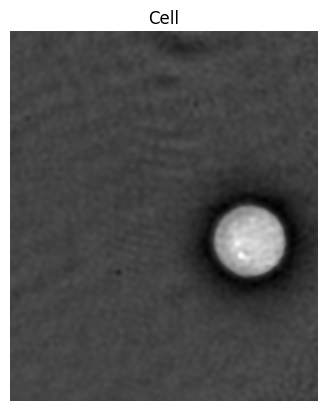
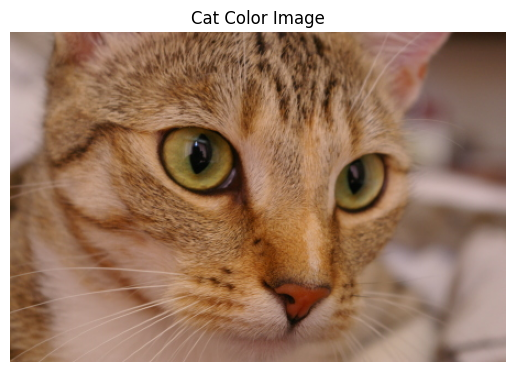
We’ll define the sample images from skimage library. The grayscale image used is the cell image,and the RGB image used is the cat image
Example 1: Grayscale Image
# Load the cell grayscale image from scikit-image
grayscale_img = data.cell()

# Display the image
plt.imshow(grayscale_img, cmap="gray")
plt.title("Cell")
plt.axis("off")
plt.show()
# Display shape and exact numpy array
print(f'Cell gray image in 2D: {np.shape(grayscale_img)}')
print(grayscale_img)
Cell gray image in 2D: (660, 550)
[[71 71 72 ... 73 75 76]
 [71 71 71 ... 73 75 76]
 [71 71 71 ... 73 75 76]
 ...
 [68 68 68 ... 60 60 61]
 [68 68 68 ... 59 60 61]
 [68 68 68 ... 59 60 61]]
Example 2: RGB Image
# Load the cat color image from scikit-image
rgb_img = data.cat()

# Display the image
plt.imshow(rgb_img)
plt.title("Cat Color Image")
plt.axis('off')
plt.show()
# Display shape and exact numpy array
print(f'Cat color image in 3D: {np.shape(rgb_img)}')
print(f"First 3 rows and 3 columns (RGB values) of the cat color image:\n{rgb_img[:3, :3]}")
Cat color image in 3D: (300, 451, 3)
First 3 rows and 3 columns (RGB values) of the cat color image:
[[[143 120 104]
  [143 120 104]
  [141 118 102]]

 [[146 123 107]
  [145 122 106]
  [143 120 104]]

 [[148 126 112]
  [147 125 111]
  [146 122 109]]]
Applying the reposition_image Function
We can now apply the reposition_image function to perform transformations on grayscale and RGB images. You can customize flip to flip the image, rotate to rotate the image, shift_x to shift the image on its x axis, and shift_y to shift the image on its y axis.
Applying Horizontal Flip to the Grayscale Image
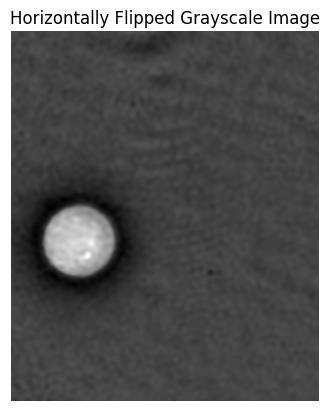
Let’s apply a horizontal flip to the grayscale image using flip = ‘horizontal’ for this example.
# Applying flip to the grayscale image
flipped_grayscale_img = reposition_image(grayscale_img, flip='horizontal')

plt.imshow(flipped_grayscale_img, cmap='gray')
plt.title('Horizontally Flipped Grayscale Image')
plt.axis('off')
plt.show()
Applying Horizontal & Vertical Flip to the RGB Image
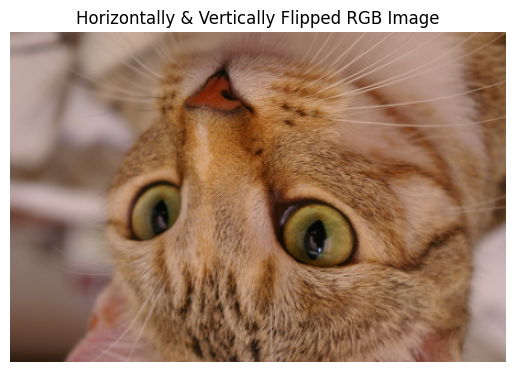
Let’s apply both a horizontal and a vertical flip to the RGB image using flip = ‘both’ for this example.
# Applying flip to the RGB image
flipped_rgb_img = reposition_image(rgb_img, flip='both')

plt.imshow(flipped_rgb_img)
plt.title('Horizontally & Vertically Flipped RGB Image')
plt.axis('off')
plt.show()
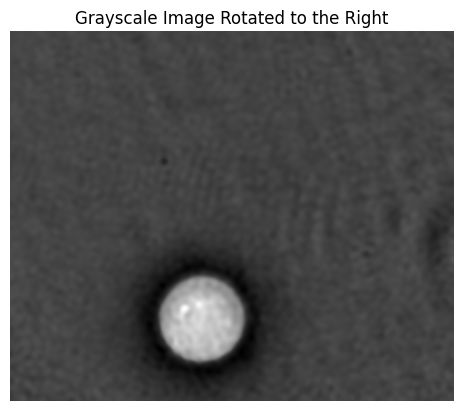
Applying Right Rotation to the Grayscale Image
Let’s rotate the grayscale image to the right using rotate = ‘right’ for this example.
# Rotating the grayscale image
rotate_grayscale_img = reposition_image(grayscale_img, rotate='right')

plt.imshow(rotate_grayscale_img, cmap='gray')
plt.title('Grayscale Image Rotated to the Right')
plt.axis('off')
plt.show()
Applying Down Rotation to the RGB Image
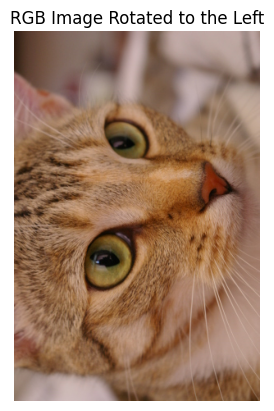
Let’s rotate the RGB image to the left using rotate = ‘left’ for this example.
# Rotating the RGB image
rotate_rgb_img = reposition_image(rgb_img, rotate='left')

plt.imshow(rotate_rgb_img)
plt.title('RGB Image Rotated to the Left')
plt.axis('off')
plt.show()
Applying Rightwards shift to the Grayscale Image
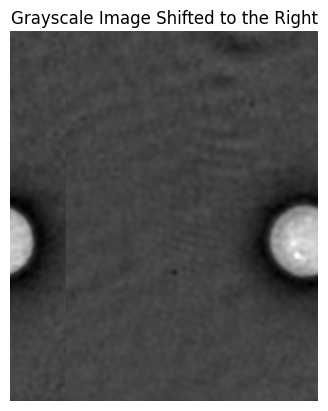
Let’s shift the grayscale image to the right using shift_x = 100 for this example.
# Shifting the grayscale image to the right
shift_right_grayscale_img = reposition_image(grayscale_img, shift_x=100)

plt.imshow(shift_right_grayscale_img, cmap='gray')
plt.title('Grayscale Image Shifted to the Right')
plt.axis('off')
plt.show()
Applying Leftwards shift to the RGB Image
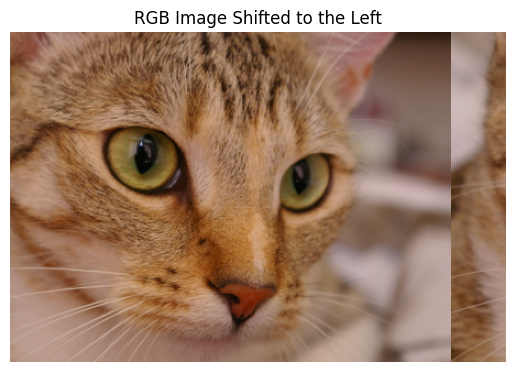
Let’s shift the RGB image to the left using shift_x = -50 for this example.
# Shifting the RGB image to the left
shift_left_rgb_img = reposition_image(rgb_img, shift_x=-50)

plt.imshow(shift_left_rgb_img, cmap='gray')
plt.title('RGB Image Shifted to the Left')
plt.axis('off')
plt.show()
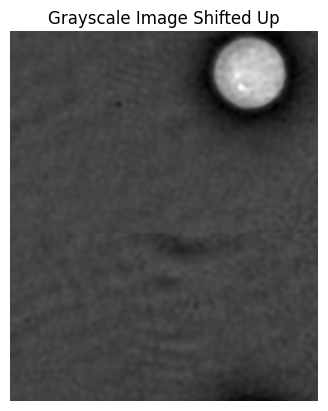
Applying Upwards shift to the Grayscale Image
Let’s shift the Grayscale image upwards using shift_y = -300 for this example.
# Shifting the grayscale image up
shift_up_grayscale_img = reposition_image(grayscale_img, shift_y=-300)

plt.imshow(shift_up_grayscale_img, cmap='gray')
plt.title('Grayscale Image Shifted Up')
plt.axis('off')
plt.show()
Applying Downwards shift to the RGB Image
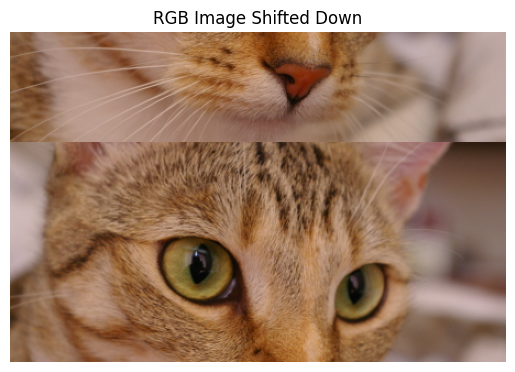
Let’s shift the RGB image downwards using shift_y = 100 for this example.
# Shifting the RGB image down
shift_down_rgb_img = reposition_image(rgb_img, shift_y=100)

plt.imshow(shift_down_rgb_img)
plt.title('RGB Image Shifted Down')
plt.axis('off')
plt.show()
Applying Multiple Tranformations to the Grayscale Image
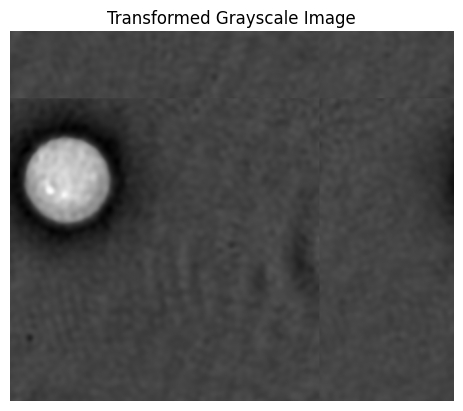
Let’s apply multiple transformations at once to the grayscale image next. We will flip the image vertically (flip=’vertical’), rotate to the left (rotate=’left’), shift to the left (shift_x=-200), and shift down (shift_y=100).
# Transforming the grayscale image
transform_grayscale_img = reposition_image(grayscale_img, flip='vertical', rotate='left', shift_x=-200, shift_y=100)

plt.imshow(transform_grayscale_img, cmap='gray')
plt.title('Transformed Grayscale Image')
plt.axis('off')
plt.show()
Applying Multiple Tranformations to the RGB Image
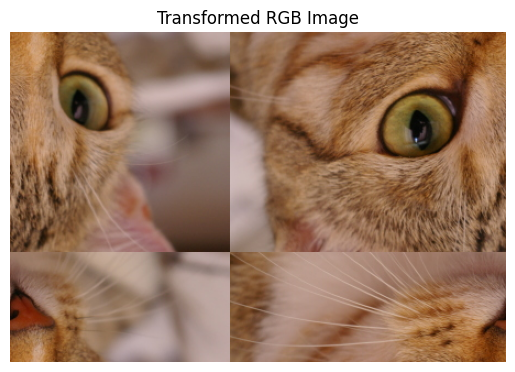
Let’s apply multiple transformations at once to the RGB image next. We will flip the image horizontally (flip=’horizontal’), rotate downwards (rotate=’down’), shift to the right (shift_x=200), and shift up (shift_y=-100).
# Transforming the RGB image
transform_rgb_img = reposition_image(rgb_img, flip='horizontal', rotate='down', shift_x=200, shift_y=-100)

plt.imshow(transform_rgb_img)
plt.title('Transformed RGB Image')
plt.axis('off')
plt.show()
Congratulations! You have successfully learnt how to use the reposition_image function to use tranform grayscale and RGB images. Feel free to test the function out on your own images to explore the full potential of image repositioning!